
What Is a Retail Touch Screen Kiosk?

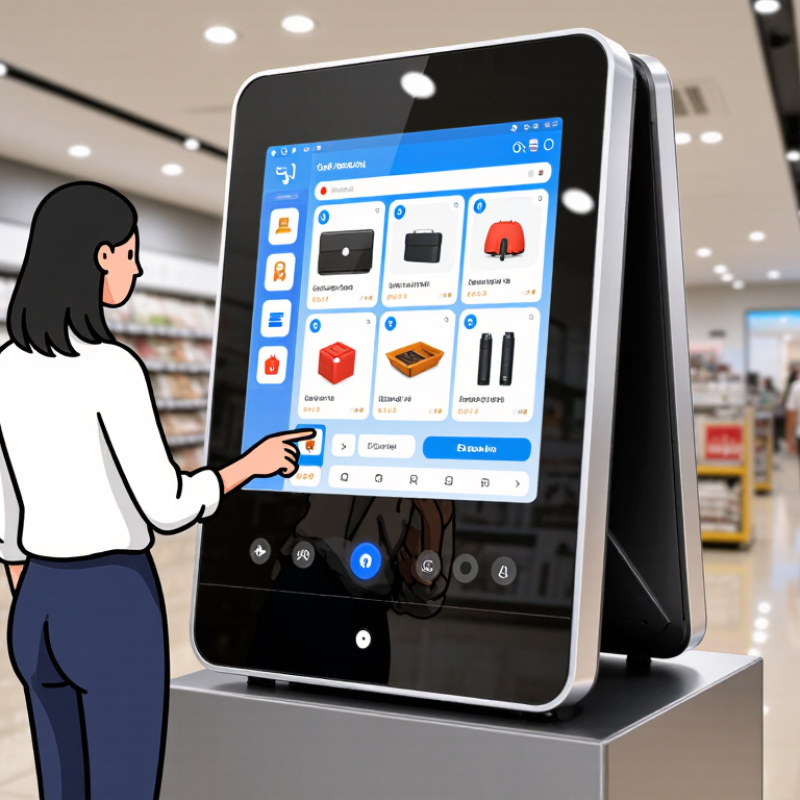
A Retail Touch Screen Kiosk is a self-service station that lets shoppers browse products, check prices, find items, place orders, or complete checkout through an interactive display. In a store, it might stand near the entrance, beside a product aisle, or at a pickup counter. Its purpose is practical: make useful information available when staff are busy or shoppers prefer to explore independently.

The market is growing. Grand View Research estimated the global self-service kiosk market at USD 12.05 billion in 2023, with retail among its application areas. That figure covers more than retail touch-screen devices, so it should not be read as a retail-only market estimate. Still, it signals wider investment in self-service technology. Retail futurist Doug Stephens has said, “Retail is not dead. Boring retail is dead.” A kiosk can support a more engaging store experience, but only when its content is clear and its interface works smoothly.

Small details matter. A shopper should be able to read the screen under bright ceiling lights, tap a product without delay, and find help if a payment fails. A screen alone is not a strategy. Poor placement, confusing menus, or outdated stock information can turn convenience into frustration. That distinction matters. Understanding what a Retail Touch Screen Kiosk does—and where it falls short—helps retailers choose and design one around real customer needs.
What Is a Retail Touch Screen Kiosk?

Definition and Purpose of a Retail Touch Screen Kiosk

What Is a Retail Touch Screen Kiosk?

Definition and Purpose of a Retail Touch Screen Kiosk

A retail touch screen kiosk is a self-service digital station placed inside a store. It usually combines a display, touch interface, computer, and secure network connection. Customers can browse products, check availability, compare specifications, and request assistance without waiting at a counter. The kiosk may also support ordering or payment when it connects with approved retail systems.

Its purpose is to make shopping clearer and more flexible. A customer might search for a product by category, scan an item code, or view a larger product image. Helpful content can include prices, sizes, materials, instructions, and nearby stock information. Clear buttons matter. So does readable text. Small fonts can quickly frustrate shoppers, especially in bright stores.

A well-designed kiosk supports staff rather than replacing them. Employees can spend more time answering detailed questions while customers handle simple searches independently. In practical store testing, placement often affects performance as much as software. A kiosk hidden beside a display may receive little attention. A crowded interface creates another problem. It looks modern, but feels slow. Retail teams should review accessibility, data protection, maintenance, and content accuracy before launch. Stock information can change quickly, so outdated results damage trust. The design may never be perfect. Regular observation and adjustment remain necessary.


Core Components and Display Technologies

What Is a Retail Touch Screen Kiosk?
Core Components and Display Technologies

A retail touch screen kiosk combines a display, touch sensor, computer, and secure enclosure. The computer runs the interface and connects to inventory, payment, or store systems. A sturdy enclosure protects cables and components from frequent use. Small details matter: a loose cable can interrupt a busy checkout.

Display choice affects readability, durability, and cost. LCD panels are common and can offer high brightness for well-lit stores. OLED screens provide strong contrast, but may not suit every budget or environment. Projected capacitive touch supports responsive, familiar gestures; infrared touch can work with thicker glass. Grand View Research estimated the global digital signage market at about $26.1 billion in 2023. That figure covers more than kiosks, but signals wider investment in digital displays. A market estimate is not a substitute for testing the screen in your actual lighting.

Tips: Check the screen at eye level, under store lights. Test touch response with dry and damp fingers. I’d also revisit the interface after installation; a design that looks clear on a desk can feel cramped in a crowded aisle.

How Customers Interact with a Retail Kiosk

A retail touch-screen kiosk gives shoppers a direct way to browse, check details, and complete simple tasks without waiting for staff. Customers usually begin with a clear choice: search for a product, scan a shelf label, or tap a category. They may compare sizes, check stock, view aisle directions, or add an item to a basket. On a busy afternoon, a large button and a visible back option can matter more than an elaborate animation. Keep it simple. Shoppers should be able to change language, enlarge text, or ask for staff help without losing their progress.

The PwC 2023 Global Consumer Insights Pulse Survey found that 43% of consumers would pay more for convenience, while 42% valued a friendly, welcoming experience. These are not kiosk-specific findings, but they highlight two expectations kiosks should support: quick, clear service and a reassuring route to human assistance. Retail teams can test this by watching people use the screen, noting where they pause, mis-tap, or abandon a task. A kiosk can still feel clumsy. Small friction counts. If product information is out of date or the interface hides help, customers may walk away rather than try again. Regular checks of screen readability, stock data, and task completion can reveal problems before they become routine.

What Is a Retail Touch Screen Kiosk? — How Customers Interact with a Retail Kiosk

Interaction Stage Customer Action Kiosk Response Typical Retail Example
Start or wake the screen Tap the screen or select a clearly labeled start option. Displays the home screen, available services, and any necessary instructions. Opening a store directory or starting a self-service order.
Choose a task Select an option such as product search, store information, or checkout. Shows the relevant menu and guides the customer to the next step. Choosing “Find a product” to search the store’s catalog.
Search or browse products Enter a product name or category, or browse displayed items. Shows matching products and, where available, details such as price, size, or availability. Checking whether a particular size is available in store.
Review product details Open a product listing and review its displayed information. Provides relevant details, which may include descriptions, options, or location information. Viewing product specifications or finding an aisle location.
Make or confirm selections Choose options such as quantity, size, or service preferences. Updates the selection and presents a review screen before the customer continues. Selecting a quantity before adding an item to an order.
Scan an item, when supported Present a barcode to the kiosk’s scanner or follow on-screen scanning instructions. Identifies the scanned item and displays it for confirmation. Adding a barcoded product during self-checkout.
Pay, when payment is supported Follow the payment prompts using an accepted payment method. Processes the payment through the connected payment system and displays the result. Completing payment at a self-service checkout station.
Receive confirmation or next steps Review the confirmation and follow any collection or assistance instructions. Displays a completion message and may offer a printed or digital receipt, depending on the setup. Following collection instructions after placing an order.
Get help or restart Select a help option or return to the home screen. Provides available support information or resets the session for the next customer. Asking for assistance when a product cannot be found.

Common Types and In-Store Applications

A retail touchscreen kiosk is an interactive screen that helps shoppers find products, check details, or complete tasks in a store. Common types include product-locator kiosks, self-service ordering stations, checkout terminals, and “endless aisle” screens for browsing items not stocked nearby. Some also support loyalty sign-ups or appointment check-in. The best choice depends on the store’s layout and customers’ needs.

In practice, a shopper might search for a lamp, compare sizes, then see which aisle holds it. A checkout kiosk can reduce queues for customers with small baskets, while an endless-aisle screen can show colors or sizes unavailable on the shelf. Useful, but not magic. Screens need readable text, clear prompts, and regular maintenance; a frozen display beside a busy counter quickly becomes a frustration.

The U.S. Census Bureau reported that e-commerce made up 16.1% of U.S. retail sales in 2024, growing 8.1% from 2023. That shift makes connected store experiences more relevant, though it does not prove kiosks alone drive sales. A Harvard Business Review analysis of 46,000 shoppers found that omnichannel customers spent 4% more in stores and 10% more online than shoppers using one channel. Kiosks can link those channels by helping customers check availability or order an out-of-stock item. Small details matter. Store teams should still watch where shoppers hesitate, because a polished screen can solve the wrong problem.

Benefits, Accessibility, and Operational Considerations

What Is a Retail Touch Screen Kiosk?

Benefits, Accessibility, and Operational Considerations

A retail touch screen kiosk lets shoppers browse products, check availability, or complete simple tasks without waiting for staff. In a busy store, that can free employees to answer detailed questions while customers handle routine requests. Less waiting. A kiosk may also show consistent product information, though outdated prices or stock details can quickly undermine trust.

Accessibility depends on practical design, not just a large screen. Use readable text, strong color contrast, clear instructions, and buttons that are easy to reach and press. Offer more than one way to complete key tasks, such as touch controls and staff assistance. Keep language direct. Test the interface with people who have different abilities and levels of digital confidence; a design that seems obvious to its creators may still confuse shoppers.

Operations need steady attention. Staff should know how to restart the kiosk, report faults, and help customers without taking over unnecessarily. Clean touch surfaces regularly, check connections, and review usage or error reports for recurring problems. A kiosk is not automatically an improvement. If it blocks an aisle, freezes during a rush, or offers no human fallback, it adds friction instead. Small details matter, and some will need revisiting after real shoppers use the system.

Go to Top